Faculty Grade Entry
General Navigation
Click image to enlarge.
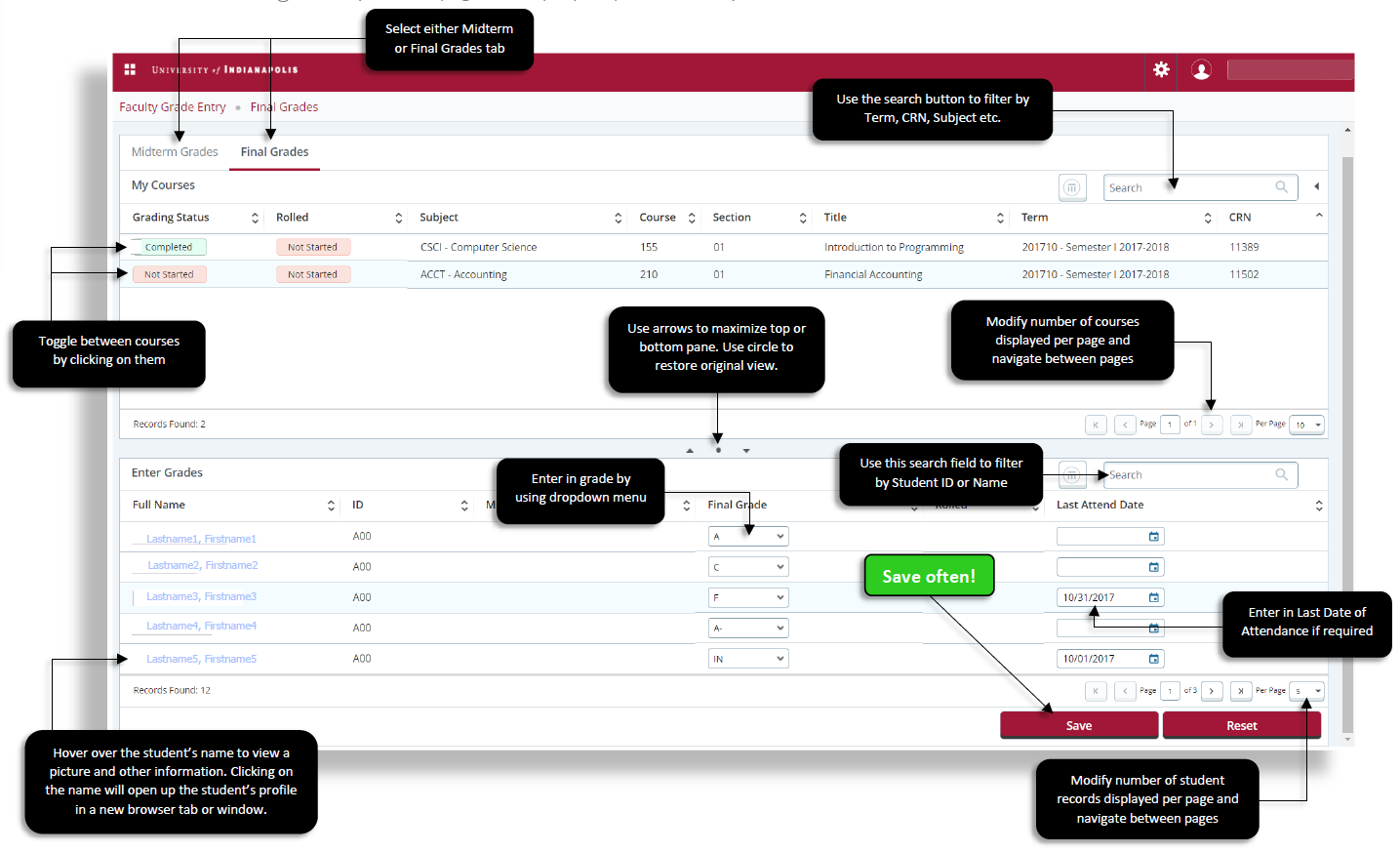
Entering Midterm or Final Grades
Use the following steps to enter midterm or final grades
- Access the Faculty Grade Entry page through My UIndy or Self-Service Banner.
- Select either the Midterm Grades or Final Grades tab.
- Select a course from the list of gradable courses.
Note: If needed, the search bar can be used to filter by Term, CRN, Subject etc. - The lower panel will now display the students for your selected course. Enter grades by selecting the appropriate code from the dropdown menu. If the grade you are entering requires a Last Date of Attendance, enter it in the appropriate field (Format: MM/DD/YYYY).
- Save and save often.
Helpful Hints and Tips
- Save frequently to avoid losing data. You can save as often as you like and still return to the course to enter in or modify grades*.
- When entering a Last Date of Attendance (required for F and IN grades), it is recommended that you use the pop-up calendar to select the appropriate date. However if you chose to type in the last date of attendance please ensure that you use the appropriate format (MM/DD/YYYY).
- For courses with high enrollment, student records may be displayed over multiple pages. Use the arrows at the bottom of the page to navigate to the next set of records or to change the default number of student records displayed on each page.
*Once a final grade has been rolled to academic history it cannot be modified using Faculty Grade Entry. To modify a final grade after it has been rolled please contact the Office of the Registrar.